DS5 Windows (DualSenseX) – Use PS5 Controller on PC
Want to use a PS5 Controller on PC? Get Ds5 windows/ DualsenseX and use your DualSense PS5 controller on PC Windows flawlessly without any glitch.
What is DS5 Windows (DualsenseX)
DS5 Windows, also known as DualsenseX (DSX), is a next-generation tool that is introduced by Paliverse Apps LLC to connect the PlayStation 5 (PS5) controller to Windows 10/11 PC. It is a gamepad input mapper that allows the PS5 Controller to connect with a PC without any connectivity issues.
Unlike the DS4 Windows, DualSenseX brings out all of the DualSense’s unique features (adaptive triggers, high‑quality haptics, speaker audio, etc.) on PC, and lets you customize the controller’s behavior. It can emulate different gamepads (Xbox 360 or PS4) for maximum compatibility, and runs on both Steam and other platforms.
| INFORMATION | DETAILS |
|---|---|
| Tool Name | DualSenseX (commonly known as DS5 Windows) |
| Developer | Paliverse (Paliverse Apps LLC) |
| Supported Platforms | Windows 10 and Windows 11 (64-bit) |
| Compatible Controllers | PlayStation 5 DualSense (primary), also supports DualShock 4 and Xbox controllers |
| Version | Latest 1.4.9 |
Features of DualSenseX
Multiple Emulation Modes
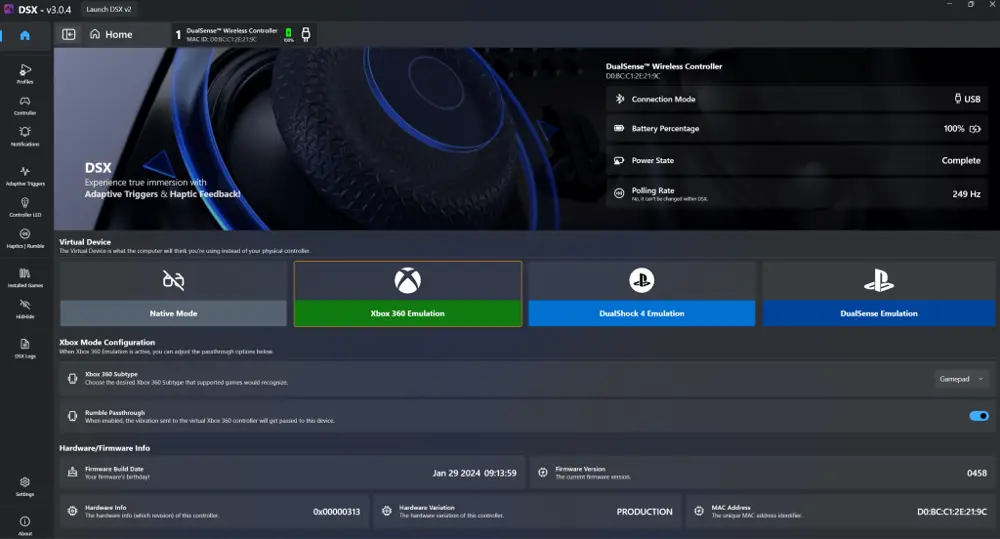
DualsenseX emulates support for different types of controllers, Xbox 360, Dualshock 4, or stay as Dualsense. This feature allows users to. It also allows you to map controller buttons to keyboard and mouse actions, which is super useful for non-controller-supported games.
Keyboard and Mouse Mapping
Map controller buttons and sticks to keyboard or mouse inputs, letting you play non-controller-supported PC games with your DualSense.Set up macros or shortcut combos (e.g., media keys), and launch actions when certain buttons are pressed.
feedback, giving you immersive tension for racing, shooting, or action games on PC.
Game Audio Routing
You can route in-game audio directly into the controller’s haptics, making the vibrations pulse and react to the game’s sound effects or music.
Profile and Game-Specific Settings
Create and save multiple profiles with custom settings for different games, so you can quickly switch without reconfiguring everything.
Adaptive Trigger Support
Adaptive trigger support lets you customize the DualSense’s trigger resistance and feedback, giving you immersive tension for racing, shooting, or action games on PC.
Xbox and DS4 Emulation
Emulates Xbox or DualShock 4 controllers for maximum compatibility with games that don’t natively support DualSense on Windows.
RGB Light Customization
Customize the controller’s lightbar colors to match your mood, game themes, or just to add cool personal flair.
USB and Bluetooth Support
Supports both wired (USB) and wireless (Bluetooth) connections, giving you flexibility in how you connect and play on your PC.
Built-in Gamepad Testing Tool
DualsenseX comes with a built-in gamepad testing tool. You can test buttons, joysticks, triggers, and touchpad input. It also displays important details like battery status (note: USB connections often show 100% by default). Best of all, this tool helps you troubleshoot issues or confirm your custom settings are working as expected.
These combined give DS5 Windows (DualSenseX) a richer feature set than older tools. For example, DS4Windows supports PS5 controllers, but it mainly emulates an Xbox pad and only provides basic vibration. DualSenseX is specifically designed for the PS5 pad’s new tech, so you get those advanced features on PC.
How To Download, Install, and Set Up DS5Windows
System Requirements for DS5 Windows
| Requirement | Details |
| Operating System | Windows 10 or Windows 11 (64-bit) — make sure your system is updated to the latest version for best performance. |
| Controller | Sony PS5 DualSense controller — works over USB-C cable or Bluetooth (Bluetooth LE required for wireless connection). |
| Software | Latest .NET Desktop Runtime — the installer will prompt you if it’s missing, so no worries if you’re unsure. |
| Drivers | ViGEmBus Driver (needed for controller emulation); HidHide (optional, for better input isolation if you want the system to recognize only the virtual controller). |
| Connection | USB-C cable (any standard one works) or Bluetooth (requires your PC to support Bluetooth Low Energy for proper pairing). |
| Recommended | A modern Bluetooth adapter (if going wireless) and a controller fully charged for best connection stability and performance. |
Step 1: Download DS5Windows (DualSenseX)
- Go to the official DualSenseX GitHub
- Under Releases, find the latest version and click Download the .exe installer or ZIP.
Step 2: Install DS5Windows (DualSenseX)
If you downloaded the ZIP:
- Extract it using WinRAR, 7-Zip, or Windows Explorer.
If you downloaded the installer:
- Double-click the .exe file and follow the on-screen installation instructions.
Administrator rights may be needed, so if prompted, click Yes.
Step 3: Install Required Drivers
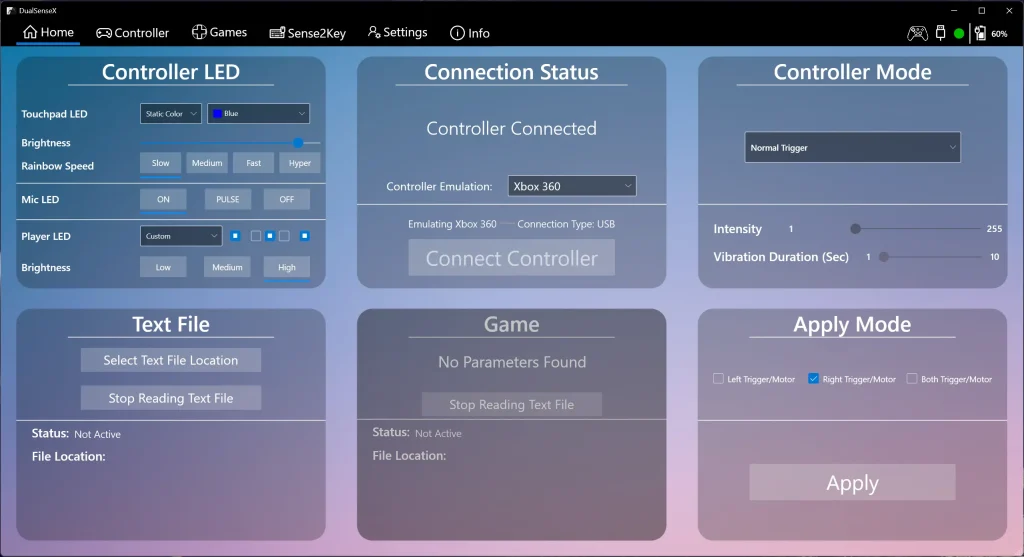
Open DS5Windows / DualSenseX after installation.
It will prompt you to install required drivers:
- ViGEmBus: Virtual Gamepad Emulation driver (used for XInput).
- HidHide (optional but recommended): Hides physical controller to prevent double inputs.
- FakerInput (optional): For advanced input mappings.
Follow the prompts to install each driver. You might need to restart your PC.
Step 4: Connect Your DualSense Controller
Wired (USB) Setup
- Connect the Controller: Plug the DualSense into a USB port. Windows should recognize it automatically as a gamepad. No extra drivers are needed for basic operation.
- Run DualSenseX (DS5 Windows): Launch the DSX app. It should detect the controller and display its name (e.g. “DualSense Wireless Controller”). If prompted by Windows security, allow the app to run.
- Install Drivers (if not done): If DSX prompts about missing drivers, install ViGEmBus. After installing, restart DSX and it should now be active.
- Customize: You can now switch emulation modes, test triggers, and adjust settings in the UI. The controller’s adaptive triggers and haptics will work in all games as configured.
Bluetooth Setup
- Pair the Controller: Put the DualSense in pairing mode (hold PS Button + Create until the light bar blinks). In Windows Settings → Bluetooth, pair “DualSense Wireless Controller.”
- Open DSX: Launch DualSenseX; it will recognize the Bluetooth controller (see “Connection Type: Bluetooth” in the app).
- Notes: Bluetooth may have slightly more input lag and some audio/haptics limitations compared to USB. For example, 3D audio from the headphone jack only works on USB. Still, for wireless play the full controller experience is mostly available.
- Alternate (DS4Windows): You can also use Steam Input or DS4Windows with the controller over Bluetooth without DSX, but that won’t expose the DualSense-specific features.
Step 5: Configure and Set Up
- Launch DS5Windows (DualSenseX).
- The app will detect your DualSense controller.
- Go to:
- Profiles → create or load a controller profile.
- Adaptive Triggers → test or configure trigger resistance.
- Haptics → tune vibrations and feedback.
- Lightbar → set custom colors or effects.
Save your profile and apply it.
Step 6: Test in Games
- Open Steam or any game that supports Xbox or PlayStation controllers.
- Check input mappings and make sure the DualSense features work (adaptive triggers, haptics, etc.)
- If needed, fine-tune settings in DS5Windows or in-game.
🎥 How to Download and Install DS5Windows Step by Step Video Guide
Struggling to download and install ds5windows on ps5 controller? Here is the step by step video guide and complete tutorial of how to download install and setup dualsenseX ds5windows. Watch the complete video and you will get toknow each and every thing about DS5Winodws.
Why Use DualSenseX?
| Feature | DS4Windows | DS5 Windows (DualSenseX) |
|---|---|---|
| PS5 Controller Support | ❌ | ✅ |
| Adaptive Trigger Emulation | ❌ | ✅ |
| Haptic Feedback / Audio to Haptics | ❌ | ✅ |
| Gyroscope / Motion Controls | Partial | ✅ |
| UI & Profile System | Basic | Advanced |
Feature Comparison (DS5Windows vs DualSenseX vs DS4Windows vs Steam)
| Feature | DualSenseX (DS5Windows) | DS4Windows | Steam Input (Native) | Xbox Controllers |
| Main Purpose | Specialized software for PS5 DualSense on Windows, unlocking adaptive triggers, haptics, and full customization. | Open-source tool for PS4 and PS5 controller mapping on Windows, mainly emulates Xbox 360 (XInput). | Built-in Steam support for DualSense — plug-and-play for Steam games, no extra software. | Native plug-and-play controller support on Windows; works in almost all PC games without additional drivers. |
| Adaptive Triggers & Haptics | Full support for adaptive trigger effects, haptic audio feedback, and trigger presets — made specifically for DualSense features on PC. | Only offers standard rumble (no adaptive triggers or haptic-audio integration). | Supported in some newer Steam games if the developer integrated Sony’s APIs. | Not available — Xbox controllers have basic rumble but no adaptive triggers or stereo haptics. |
| Emulation & Compatibility | Emulates Xbox or DualShock pads so any game (including non-Steam) sees the DualSense as a compatible device. | Emulates Xbox 360 controller (XInput) for wide game compatibility. | Works directly with Steam games; outside of Steam, no built-in DualSense support. | Full XInput compatibility — works instantly on Windows and with nearly every PC game. |
| Customization | Advanced profile system, per-controller RGB lighting control, button remapping, and detailed trigger/haptic tuning. | Button remapping, motion sensor support, profiles, and lightbar control — but lacks DualSense-specific features. | Basic Steam configuration settings; lacks the deep customization available in DSX or DS4Windows. | Limited customization through Xbox Accessories app (for newer models), but no per-game profiles or advanced remapping by default. |
| Ease of Use | Easy to use with a modern interface, but the latest updates (with more features) are only available in the paid Steam version. | Simple, lightweight, and free; older interface but very community-friendly. | Extremely easy — just plug in and play on Steam; no third-party software needed. | Easiest — fully plug-and-play on Windows with no software or setup required. |
| Software & Drivers Needed | Requires DualSenseX installer, .NET, ViGEmBus driver; HidHide optional for input isolation. | Requires DS4Windows software, ViGEmBus driver, and optional HidHide. | No extra software — runs through Steam Input directly. | No extra drivers or software; works natively with Windows. |
| Best For | Gamers who want full PS5 controller features on PC, including haptics, triggers, and deep customization, across Steam and non-Steam games. | Players who want flexible button remapping and profiles for PS4/PS5 controllers, mostly for Xbox emulation, but don’t need adaptive triggers or advanced haptics. | Steam gamers who just want easy DualSense or PS5 controller use on PC without needing to mess with settings or drivers. | Gamers who prioritize simplicity, plug-and-play convenience, and broad game support — Xbox is still the easiest Windows controller to use out of the box. |
Troubleshooting Tips
- Controller Not Detected? In DS4Windows or DSX, ensure you have the latest version. For DS4Windows, always use Ryochan7’s current build (v3.3.3 as of 2025) – older versions don’t support DualSense.. Install ViGEmBus and reboot your PC. Also try different USB ports/cables. If using Bluetooth, remove and re-pair the controller in Windows Settings.
- No Haptics or Triggers? DualSense audio jack (headset audio) only works over USB due to Windows limitations.. Ensure DSX is updated. Some games only use standard rumble unless explicitly coded for adaptive triggers; DSX’s “Rumble to Haptics” mode can convert normal vibration into haptic feedback.
- Language/Unicode Problems: If characters look odd in DSX, try changing your system locale or using the profile system. (DSX supports 20+ languages.
- Steam Overlay Interference: If using the Steam version, disable Steam’s overlay for the controller app to avoid conflicts. Or close Steam when using the GitHub version of DSX.
Use Cases (Gaming & Beyond)
DualSenseX is designed for gaming, especially titles that can use the DualSense’s unique features. For example, racing and action games can make full use of the adaptive triggers and haptics on PC (as seen with mods like RacingDSX). Any Steam or non‑Steam game will work with DSX because it emulates an Xbox controller under the hood. It also supports workshop mods and game-specific settings, making it easy to tailor the pad for popular titles.
Beyond gaming, you can use DualSenseX to remap your PS5 controller for general PC use. For instance, map buttons and sticks to keyboard keys or mouse actions – useful for media playback (volume, play/pause), controlling presentations, or as an accessibility device. The controller’s motion sensors or lightbar can even be programmed for creative applications. (DSX’s “Test Controller” tools let you assign any button to any key press.) In short, it works anywhere you might use a gamepad or want extra input options on PC.
Frequently Asked Questions
- Q: Where can I download DS5 Windows (DualSenseX)?
A: The official DualSenseX v1.4.9 (DS5 Windows) is on GitHub. Download the ZIP from the releases page.. (For example: DualSenseX-Setup.zip). This free version includes all core features of DSX v1.4.9. The latest DSX updates are available via the paid Steam version
- Q: Do I need DS4Windows if I’m using DualSenseX?
A: Not for DualSense. DualSenseX handles all DualSense input on its own. You only need DS4Windows if you want to use older PlayStation controllers (DualShock 3/4) on PC or use an alternate mapper. DualSenseX can emulate both Xbox and DualShock pads, so DS4Windows is optional when using the DualSense. - Q: What are the system requirements?
A: You need Windows 10 or 11, a PS5 DualSense controller, and install .NET and ViGEmBus. The DualSenseX setup will prompt you to install the ViGEmBus driver, which is required. A Bluetooth adapter is only needed for wireless use. - Q: Which is better for PC gaming, DualSense or Xbox controllers?
A: It depends on your priorities. Xbox controllers are extremely easy – they work out-of-the-box on Windows with no extra setup. The DualSense, however, offers richer feedback. PC Gamer even calls DualSense “one of the best PC controllers”.. With Steam Input, using the DualSense is nearly as simple as an Xbox pad. If your favorite games support its haptics and triggers, the DualSense provides a more immersive experience. But if you value plug-and-play simplicity, an Xbox controller is more straightforward (on PC it’s truly plug-and-play, while DualSense requires DSX or Steam for full features). - Q: How do I pair the DualSense via Bluetooth on PC?
A: Turn on Windows Bluetooth and put the DualSense in pairing mode (hold the PS and Create buttons). On Windows, select “Wireless Controller” in the Bluetooth settings. Once paired, it appears in DSX as a Bluetooth device. Then open DualSenseX; it will auto-connect. If pairing fails, try powering cycle the controller or using a USB update. - Q: Can I use multiple DualSense controllers at once?
A: In theory yes: DSX v3 supports multiple controllers. but each will be managed by a separate app instance. Steam Input also allows multiple DualSense controllers as separate gamepads. DS4Windows can handle up to 8 controllers. In practice, most PC games either support one controller or have their multiplayer setups, so multi-controller PC play is possible if the game allows it. - Q: What about non-gaming use?
A: DualSenseX lets you map any controller button to any keyboard or mouse action. This means you can use the DualSense as a remote control – for example, map the triggers to volume up/down, buttons to media play/pause, etc. The joystick could control mouse movement. This can be handy for media centers, accessibility setups, or custom desktop shortcuts. - Q: Where can I get help?
A: Check the DualSenseX website’s Troubleshoot, Guides, and Support sections. There’s also an active Discord community (link on the site). The DS4Windows FAQ is useful for generic PlayStation controller issues. For driver help, the official GitHub pages for ViGEmBus and HidHide have installation instructions.